View Cart

Home

About Add-ins.com

Support

Money back guarantee

Customer feedback

New Products

Upgrades

Download Purchased software

Excel Problems
& Solutions

Site search


INDIVIDUAL PRODUCTS:

Macro Books

Time Saving Products

Charting Products

Data Products

Analysis Products

Specialty Products

Free Products


PRODUCT COLLECTIONS:

Visual Basic Collection

Productivity Suite


Report To Data Assistant
A specialty product for Microsoft Excel
Order online from our secure service
Get delivery in minutes!

Works in Excel 97, 2000, 2002, XP, 2003, and 2007
Order Risk Free - Money back guarantee if not satisfied

Add to shopping cart    $29.95
Buy individually or as part of the Productivity Suite and save!


Do you have these problems:

  • Text reports that need to be converted into worksheet databases?
  • Blank rows you have to manually delete when converting text reports into Excel?
  • Want the ability to choose what you extract from a worksheet?

The Report to Data Assistant can solve all of these problems and more!

The Report To Data Assistant is an add-in for Microsoft Excel. It is designed to help you convert text reports into Microsoft Excel worksheet databases. For example, if your report looks like the following:
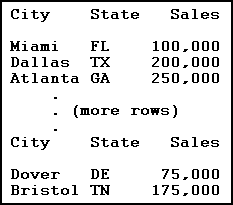
You would be faced with deleting the title rows that repeat every 60-80 lines and all the blank lines. With the Report to Data Assistant you can easily select the title rows and blank rows and delete them. Then you can use the data filter features of Excel or the pivot table features to analyze the data.

The Report to Data Assistant can also help you extract rows from a file. When the above report is parsed into Excel the sales data ends up in column C. With the Report to Data Assistant you can select all rows with numeric entries in column C. Then you would copy these rows and paste on a new worksheet.

The main menu of the Report to Data Assistant looks like this:

A selection criteria worksheet allows you to store the row selection criteria.  The following illustrates such a worksheet:

Row 3 illustrates three conditions that must be met for the the row to be included in the selection list per that test.  Rows 4 and 5 illustrate simpler tests.  The following are the many tests that you can use:

  • equal to

  • not equal to

  • contains

  • does not contain

  • empty

  • not empty

  • greater than

  • greater than or equal to

  • less than

  • less than or equal to

  • begins with

  • does not begin with

  • ends with

  • does not end with

  • numeric

  • Text

  • X or more cell entries

  • X or less cell entries

  • X cell entries

When the selection process is done the matching rows are selected. You can copy them to another worksheet via Edit Copy. You can delete them via Edit Delete. If you want to examine them you can color code them for ease of inspection. Then run the selection again to re-select the rows.

The Report To Data Assistant also has options that allow you to combine multiple rows onto one row and to concatenate multiple cell entries.  

Order online from our secure service.
Get delivery in minutes!

Add to shopping cart

  $29.95

 
Copyright 2008 Add-ins.com LLC, all rights reserved.  Spreadsheet Assistant is a registered trademark of Add-ins.com LLC.
Microsoft and Excel are trademarks or registered trademarks of Microsoft Corporation.